
”Visioning”Journal FAQs
Updated: Oct 10

How to Use Your Vision Board in GoodNotes
A simple guide for adding your photos + words each month.
GoodNotes is a beautiful way to journal digitally — and it works perfectly with your Visioning Journal.
Here’s how to use it with ease:
Import Your Vision Board PDF into GoodNotes
1. Download the PDF to your device 2. Open GoodNotes
3. Tap + New (top right)
4. Choose Import
5. Select your Vision Board PDF
6. GoodNotes will open it as a new digital notebook
✔ Set your scrolling direction to horizontal
✔ You can now write on it
✔ Add images
✔ Decorate it like a digital scrapbook
Add Photos to Your Vision Board (GoodNotes)
1. Tap the Image icon in the toolbar
2. Choose Insert from… Photos / Files
3. Select the picture you want
4. Drag to resize
5. Place anywhere on the template
Tips:
You can crop images by tapping once → Crop
Use overlapping for a collage feel by sending layers back or forward
Add depth by layering images with stickers or handwriting. The journaling card stickers are coming!
Add Text or Words (GoodNotes)
You can add text in two ways:
Option A — Handwriting
Tap the Pen tool
Choose colour + thickness
Write directly on the page
Feels intuitive and ritual-like.
Option B — Typed Text
Tap the Text tool (T)
Tap anywhere on the page
Type your intention, word, mantra or description
Resize the text box
Move it to your chosen spot
Perfect for clean digital layouts.
Save + Revisit Your Vision Board
Your board saves automatically.
To revisit next month:
Tap on the relevant tab to open a month or year the page
If one page is not enough - duplicate it! I only kept mine to one page so I could print and frame it for my desk to see it visually everyday!
Keep each month together like a digital journal
You can also export your finished board as a:
PDF
Image to set as your phone wallpaper
Page to share in Stories #hookedinrising
If you don’t have GoodNotes — try these simple alternatives
If You Don’t Have GoodNotes — Try These Simple Alternatives
Your Visioning Journal works beautifully without specialised apps.
Here are gentle options for every device:
Option 1 — Your Phone’s Notes App - Free)
Open Notes (iPhone), Samsung Notes, or Google Keep
Insert the Visioning Journal PNG or PDF
Tap Add Image to place photos
Use the pen tool to write. Save to an album called Hookedin Rising Visioning Journals”
✔ Free ✔ Easy ✔ Perfect for beginners
Option 2 — Screenshot + Edit (Instant)
Screenshot the Visioning Journal page
Open the screenshot
Tap Edit → Mark up
Tap + → Add Photo
Add images from your camera roll
Write your intentions with the pen
✔ No apps ✔ Takes 2 minutes ✔ Very intuitive
Option 3 — Canva (Editable Template can be purchased)
Perfect if someone wants a digital collage feel.
Tap the Canva template link included
Choose “Use Template”
Tap Replace on any image
Add your own pictures + text
Download or save to your phone
✔ Beautiful layouts ✔ Creative freedom ✔ No Canva Pro
Option 4 — Print it (The tactile ritual)
Some people prefer hands-on creativity:
Print the Visioning Journal template
Cut out photos from magazines or your printer
Paste them on
Write intentions with pen
Place it somewhere you’ll see daily
I’d still save a digital copy so you have it to look back on instead of it landing in the bin!
✔ Grounding ✔ Tactile ✔ Perfect for altars, journals + home rituals
“The practise is not about manifesting from lack -
it’s about expanding from alignment.”
Enjoy all the extras - the navigation links and tabs so you can switch from one board to another with ease, duplicate pages if you need extra space and read all the benefits, make it a ritual.
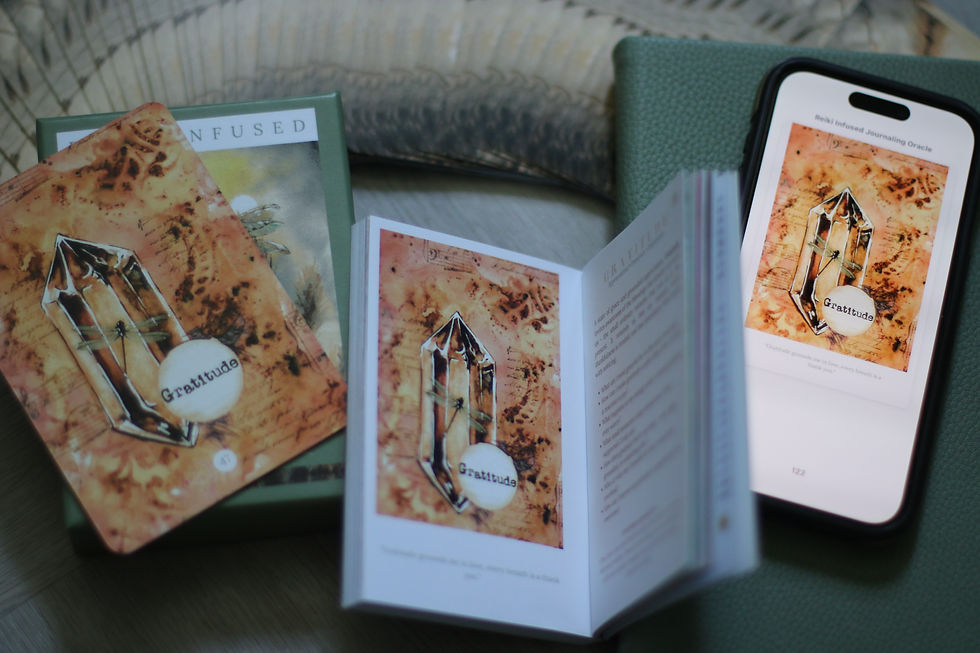
Choose words aligned to the Reiki-infused journaling Oracle deck!
Remember why you are here!


Comments